

A six year old laptop that needs four minutes to reach the Windows desktop is usually not a laptop at the end of its life. It is a laptop with a mechanical hard drive in it.
Of everything that can be done to an ageing machine, replacing the storage produces the biggest change for the money. It is also the upgrade where the wrong part gets bought most often, because storage looks simple from the outside and is not.
A drive can be the wrong shape for the slot. It can be the right shape and the wrong wiring. There may be no slot at all, because the flash is soldered straight to the mainboard and the machine was never meant to be opened.
This article goes through what actually has to match.

Why a Mechanical Drive Feels Slow
A mechanical hard drive stores data on spinning magnetic platters and reads it with a head on the end of an arm. To reach a different piece of data, that arm physically moves and the platter has to rotate around to the right spot.
Everything else follows from that one sentence.
Reading one enormous file from start to finish is the case a hard drive handles reasonably well, because the head barely has to move. That is the number on the box. What Windows actually does all day is the opposite. It reads thousands of small files scattered all over the disk, and every one of them costs another physical movement.
An SSD has nothing to move. It asks the flash for an address and the flash answers. The answer takes the same time whether the previous request was next door or at the other end of the drive.
This is why a hard drive can look respectable in a benchmark and still make a modern machine feel like it is wading through wet sand.
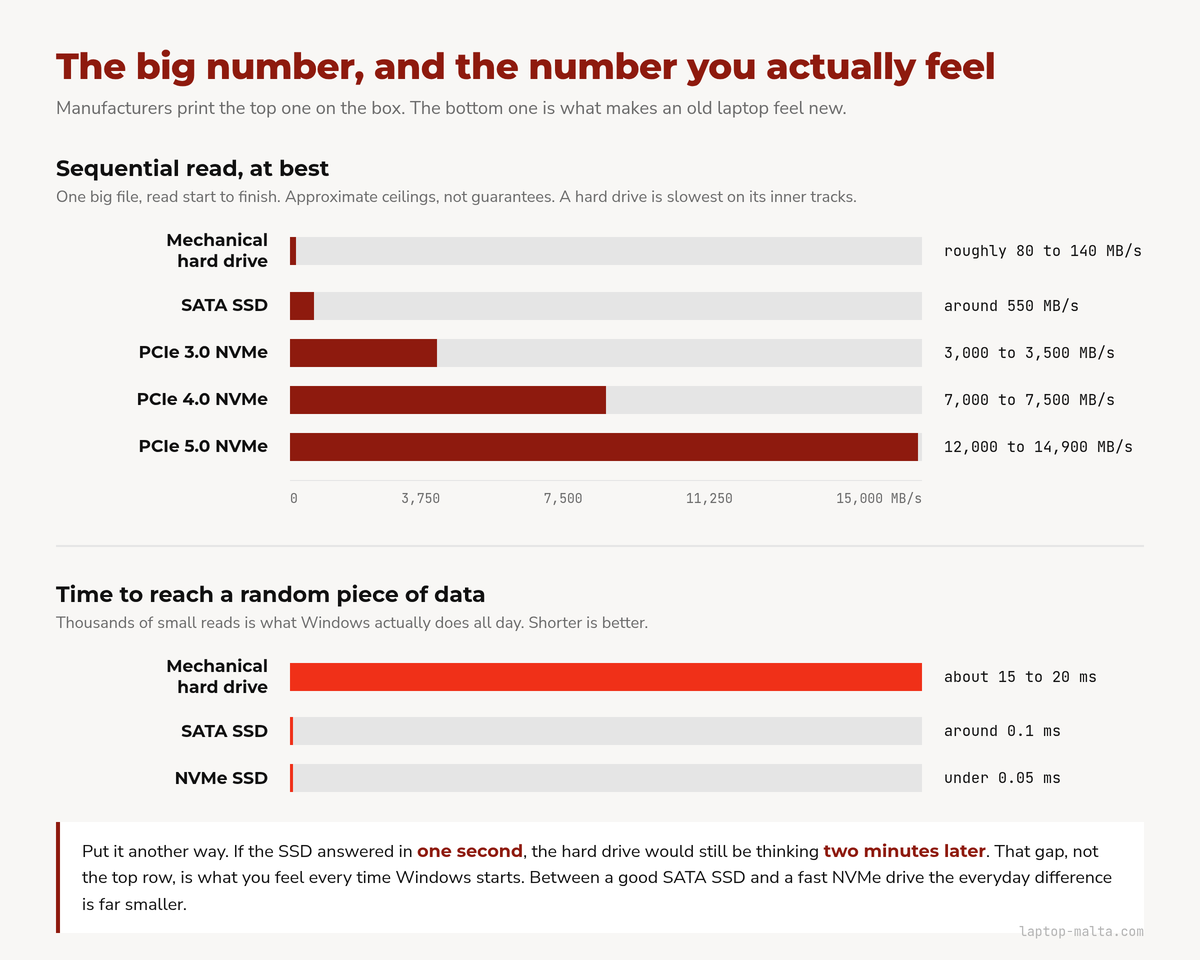
The bottom half of that picture is worth a longer look than it invites.
Between a hard drive and any SSD, the gap is enormous. Between a decent SATA SSD and an expensive NVMe drive, for browsing and email and Office, it is very nearly nothing. That is the single most useful fact in this article, and it is the opposite of what the packaging is designed to suggest.
SATA, and Why It Is Still Fine
SATA is the older connection. The current version, SATA III, runs at 6 gigabits per second, and after the encoding overhead is taken out that leaves roughly 600 MB/s of theoretical bus. Real drives land around 550 MB/s and stop there, because the road is full.
Practically every SATA SSD sold today reaches that ceiling on reads. This is worth understanding, because it means that on a SATA-only machine the expensive SATA SSD and the sensible SATA SSD arrive at much the same sequential figure. What separates them is the controller, the flash inside and how they behave under sustained load, not the headline figure.
A laptop that only supports SATA is not a reason to replace the laptop. A good SATA SSD in an older machine is still one of the largest improvements available for the money.
NVMe, and What It Actually Changed
NVMe drives do not talk over SATA at all. They connect straight to the PCI Express lanes, the same kind of connection a graphics card uses, and they speak a protocol that was designed for flash rather than inherited from spinning disks.
SATA was built in an era when the drive was always the slow part, so it hands over one queue of commands and waits. NVMe can keep many queues in flight at once. That is the real change, and it is why NVMe pulls ahead dramatically when a machine is asked to do several heavy things at the same time.
Where it shows: video editing, photo libraries, CAD, virtual machines, large games, moving huge files around, anything that reads and writes seriously for minutes at a time.
Where it does not: reading email.
None of this is an argument against NVMe. Where the machine supports it, it is normally the right choice. It is an argument against paying a premium for the fastest drive on the shelf when neither the machine nor the work being done on it can use the difference.
M.2 Is a Form Factor, Not an Interface
This is the most common mistake, and an expensive one, because by the time it comes to light the money has been spent and the drive is sitting on the table doing nothing.
M.2 is a form factor. It is not an interface, it is not a speed, and it does not mean NVMe.
There are M.2 SATA SSDs and there are M.2 NVMe SSDs. They are the same size, the same colour, and they look identical in the hand. One of them is limited to 550 MB/s and one of them is not. An M.2 slot in a laptop may also be wired for NVMe only, for SATA only, or for both, and none of that is visible from the outside.
The only clue on the drive itself is the notch.
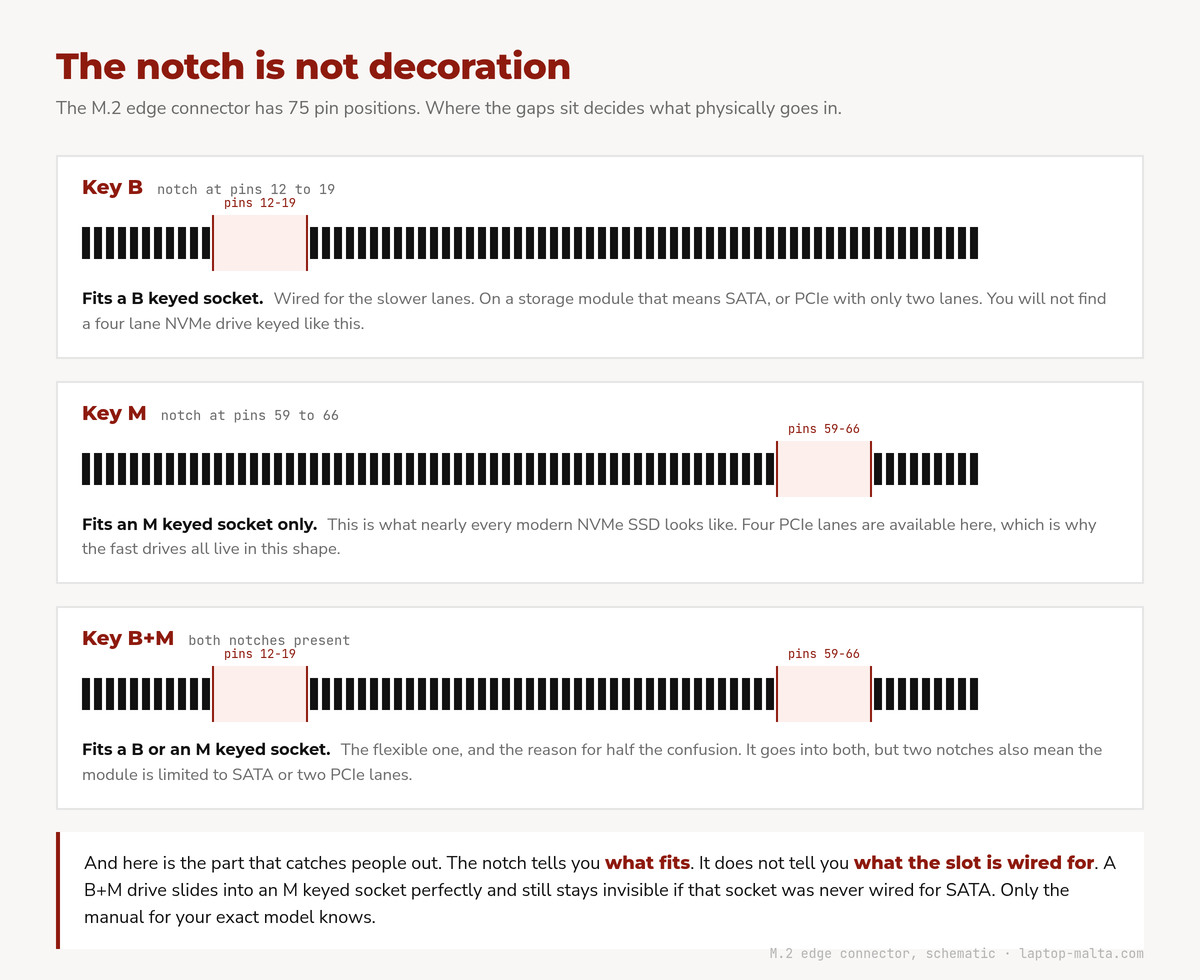
A modern four lane NVMe drive is keyed M, with the notch at pins 59 to 66. It goes into an M socket and nowhere else. A drive keyed B plus M has both notches and fits either socket, but the two notches also mean it is restricted to SATA or to two PCIe lanes, so a fast NVMe drive is never shaped that way.
Which leads to the trap. The keying tells you what will physically fit. It tells you nothing about what the socket is wired for. A B plus M keyed SATA drive slides into an M keyed slot perfectly happily, and then is simply not there when the machine boots, because that particular laptop only ever wired the PCIe lanes.
Nothing is broken and nothing is damaged. The drive just does not exist, as far as the machine is concerned.
The service manual for the exact model knows the answer. Guessing does not.
The Length Is Not Optional Either
The four digits printed after M.2 are millimetres. 2280 means 22 mm wide and 80 mm long. 2242 is the same width and 42 mm long. 2230 is the short one, and it turns up in a lot of thin machines and handhelds.
On SSDs the width is always 22 mm. The length is the part that varies, and the mounting post is where it stops. A 2242 module in a machine built for 2280 is often fine, because the shorter mounting position is frequently there as well, but whether a given machine has it is a question for the service manual rather than for optimism. The other way round is never fine.
There is a second dimension that gets forgotten. Some modules carry flash chips on one side only, others on both. In a genuinely thin machine a double sided module may not clear the cover above it, and there are devices whose documentation asks for a single sided module specifically. This cannot be reasoned out from the outside. If the machine is tight, the service manual for that exact model is where the answer lives.
PCIe 3.0, 4.0, 5.0
Each PCI Express generation roughly doubles the bandwidth per lane. NVMe drives normally use four lanes, which puts the ceiling of the road itself at roughly 3,900 MB/s on PCIe 3.0, 7,900 MB/s on PCIe 4.0 and 15,700 MB/s on PCIe 5.0. Those are the limits of the connection, not the speed of any particular drive, and real drives sit below them. The fastest current PCIe 5.0 models are getting close. Most are nowhere near, and PCIe 5.0 is still uncommon in laptops anyway.
The generations are backward compatible. A PCIe 4.0 drive in a PCIe 3.0 laptop normally works. It simply runs at PCIe 3.0 speed.
What that means in practice is that a 7,000 MB/s drive will hand back 3,500 on such a machine, and the difference lands in exactly the workloads the machine was not being used for anyway.
Going the other way is more awkward. A drive newer than the machine is one thing, but a genuinely old laptop may not be able to boot from an NVMe drive at all, because the firmware predates the idea. Sometimes a firmware update fixes it. Sometimes the machine simply uses the drive for storage and boots from somewhere else.
One more detail is worth knowing. A slot with four lanes is not guaranteed. Some laptops wire a second M.2 slot with only two lanes, and some machines share lanes between the second slot and something else. The drive still works. It just runs at half the expected speed, with nothing on screen to explain why.
The Things on the Box That Nobody Explains
Two drives can carry the same headline speed and behave completely differently once they are in use. This is where the money goes, and almost none of it is advertised on the front of the packaging.
The write cliff
Most consumer SSDs keep a fast cache region and write into it first. Inside that cache, the drive posts the number from the box. When the cache fills, the drive has to fold that data down into its slower permanent state, and the write speed drops. Sometimes it drops a long way.
Copying ten gigabytes will probably not show it. Copying two hundred, or restoring a full backup, will. The cache size also scales with how empty the drive is, which is why a nearly full SSD writes noticeably worse than the same drive did when it was new.
TLC and QLC
Flash cells can be made to hold more bits each, which makes the drive cheaper per gigabyte. More bits per cell generally means slower sustained writes and lower endurance. QLC exists so that large drives can be affordable, and for a machine that mostly reads it is perfectly sensible. For a drive that takes heavy writes all day, TLC is the calmer choice.
DRAM, or the absence of it
An SSD keeps a map of where everything physically lives. Better drives keep that map in their own DRAM chip. Cheaper NVMe drives have no DRAM and borrow a slice of system memory instead, through a mechanism called Host Memory Buffer.
For light use a good DRAM-less drive is perfectly adequate. Under sustained mixed load the difference becomes visible. A DRAM-less QLC drive set against a good SATA SSD on a long write can genuinely come off worse, which is not what the faster interface leads anyone to expect.
One practical warning belongs here. Windows changed how much host memory it hands to these drives, and some models needed a firmware update before they would boot reliably afterwards. When fitting a DRAM-less drive, the time to check for newer firmware is before it goes in, not after.
Endurance
Manufacturers publish a terabytes written figure. Normal use will never approach it. For a machine doing video work or running virtual machines, it is worth a glance before buying.
Heat, and the Thin Laptop Problem
Fast NVMe drives get hot. Not warm. Hot.
When they get too hot they throttle themselves deliberately, because the alternative is worse. In a desktop this is solved with a lump of aluminium. In a thin laptop there is often nowhere for a heatsink to go, and the manufacturer has already decided how much cooling that slot gets.
The result sounds like nonsense until it is measured. In a chassis with very little airflow, the faster drive can finish a long job behind the more modest one. It sprints, it gets hot, it throttles itself back. The slower drive never sprinted, never got hot, and simply kept going.
This is not an argument against fast drives. It is an argument against choosing one without looking at the machine it has to live in.

Not Every Laptop Can Be Upgraded
Some machines have the flash soldered directly to the mainboard. There is no slot, no module, nothing to unscrew. The storage is part of the board in the same way the processor is, and no amount of determination changes that. It is common in very thin ultrabooks, in cheaper machines that use eMMC or UFS storage, and it is the normal state of affairs on modern Apple laptops.
Others use a module that looks like M.2 and is not. Others hide the drive underneath the mainboard, so reaching it means taking the entire machine apart to get at a component that is theoretically user replaceable.
None of this is guesswork territory. It is a question with an exact answer, and the answer depends on the exact model, not on the brand and not on the year.
How Much Storage
The general rule is dull but reliable. Buy more than seems necessary, because doing the job once is cheaper than doing it twice, and because a nearly full SSD is a slower SSD.
That rule comes with a caveat this year. Flash prices have been climbing hard through 2026, driven by the amount of production being swallowed by data centres. The comfortable answer of a year ago, buy the bigger one, it is barely more money, is not as comfortable as it was. Which capacity sits at the bottom of the price per gigabyte curve keeps moving, so it is worth checking on the day rather than trusting a remembered number.
Beyond that it depends entirely on what is on the machine now. The honest starting point is how much space is in use today, and the direction that number has been travelling for the last three years. Windows has not got smaller. Neither have games, phone photo libraries or the average software installer.
The very small capacities have stopped making sense on a main system drive. Windows plus updates plus a browser plus Office does not leave much of a 120 GB drive, and once it is nearly full the result is the worst of both worlds. Slow, and out of space.
Leaving the drive some room to breathe matters. The controller needs free blocks to work with, and it does its housekeeping in the space that has not been used.
Defragmenting and Trim
An SSD is not defragmented, and there is nothing in Windows that needs to be hunted down and switched off.
The scheduled Optimize Drives task already knows the difference. On an SSD it sends a trim, which tells the drive which blocks are no longer in use so the controller can keep itself tidy. That is useful and it should be left alone. The advice to disable it is left over from an era when it was true, and it has outlived its usefulness by about a decade.
Cloning, and the Ways It Goes Wrong
Replacing the drive does not have to mean starting from an empty machine. In most cases the existing Windows installation, programs, settings and files can be copied straight across to the new drive.
In most cases. Here is where it does not go to plan.
- The old drive is dying. Cloning reads every sector of a disk that is already failing, and that is exactly the workload most likely to finish it off. When a drive is on its way out, getting the important data off it comes first. The operating system is replaceable. The photographs are not.
- The drive is encrypted. If BitLocker or device encryption is on, the recovery key has to be in hand before anything is touched. Far more machines have it on than their owners realise, because recent Windows versions relaxed the conditions for switching it on automatically. When it does ask, it asks for a 48 digit recovery key, and there is no way around it and no clever trick. Check before the work starts, not afterwards in a panic on a phone.
- The machine cannot see the new drive. Plenty of business laptops leave the factory with the storage controller in a RAID or VMD mode rather than plain AHCI or NVMe. The installer looks at an empty screen and reports no drives found. Nothing is faulty. The setting has to be changed in the right order though, because doing it carelessly stops the existing Windows from booting and usually asks for the encryption key on the way past.
- The old installation is already a mess. If Windows was unstable before, cloning delivers the same unstable Windows on a faster drive. Sometimes a clean installation is genuinely the better outcome, and that is worth being told honestly rather than being sold a copy of the problem.
One more thing. An old drive put away in a drawer still has everything on it. Deleting is not erasing, and a disk that leaves the house takes its contents with it.
A Checklist Before Buying
- Find the exact model number first. Not the brand. Not the screen size. The model.
- Read the service manual before buying the drive, not after.
- Check three things about the slot: keying, length, and whether it is wired for SATA, NVMe or both.
- Back up before anything is touched. Every time, including the time it seems unnecessary.
- Find the encryption recovery key before the old drive comes out.
- Match the drive to the machine and the work, not to the largest number available.
- Keep the old drive intact until the new one has been running happily for a week.
The last one matters more than it looks.
Checking It Without Guessing
Everything above can be established at home with the service manual for the exact model and a little patience. The three answers needed are the keying of the slot, the length it takes, and what the slot is actually wired for.
Laptop-Malta is in St Julian's and can work out what a given machine takes from its exact model number. What the work involves is set out on the SSD upgrade page.
If the answer turns out to be that a particular laptop cannot be upgraded, that is the answer given. It is a shorter conversation, and it beats fitting a drive that was never going to work.
The right drive is the one the machine can actually use.
Related reading
On memory, the other upgrade that gets asked about most: what actually changed between DDR4 and DDR5, and where XMP ends and the fun begins.